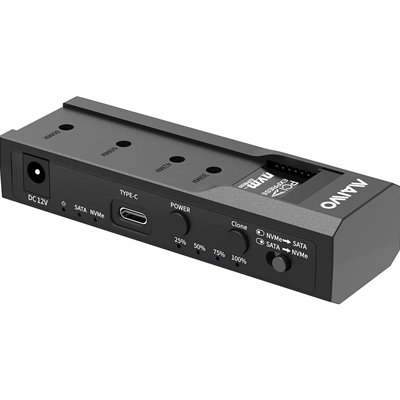
MAIWO K10635N type C 10Gbps to dual bay HDD/NVMe M2 SSD clone converter for 2.5″ and 3.5″ SATA
Key Features Screw-less design easy to install HDD and SSD Compatible for different kinds of HDD/SSD in the market, including M-key NVMe SSD,2.5″ SATA HDD/SSD and 3.5″ SATA HDD, can recognize two disks simultaneously when connecting with PC Support M-key NVMe SSD Offline clone, dual way, can copy 2.5″/3.5″ SATA => NVMe or NVMe => 2.5″/3.5″ SATA, switch to control source and target disk Four LED lights indicate clone progress 25%,50%,75% and 100% Interface: Type C to SATA/M-key M2 Support SSD size: 2230,2242,2260 ,2280 USB speed to 10Gbps max Support U.A.S.P, will improve speed 30% at win8 or above Compatible with windows, MAC and Linux Unit size:108 x 35 x 24 mm
Perfect For
System Upgrades Easily migrating an OS from an old SATA HDD to a modern, fast M.2 NVMe SSD.
Data Recovery Accessing data from different drive types without needing multiple specialized adapters.
Content Creation Managing large libraries of media files across different storage mediums at high speed.
Clear Indicator Light
Drive Indicatior Light Flashes when read & write, light goes off when in sleep mode.
Clone Indicator Light flashes when cloning, light up when cloning is finished.
Step 1 Insert 2.5″/3.5″ SATA drive into the SATA Port, or insert M.2 NVMe SSD into the M2 port.
Step 2 Spin the silicone cork to fix the M.2 hard drive.
Step 3 Connect the adapter to your device via data cable.
Step 4 Connect the power adapter and open the power switch.
Clone Operation Steps
Step 1 Choose the clone mode Make sure the capacity of the target drive is larger than or equal to the source drive Connect the power adapter, open the POWER switch, the power light, lights up and then the two Drive Indicators light up
Step 2 Long-press Clone button for 5 seconds and the Clone Indicator flashes Press Clone button within 5 seconds to enter clone mode Corresponding progress indicators start to flash when cloning Indicators are on once cloning is finished
Note: You must remove the USB-C cable from the PC for the cloning process to work
Box Contents Package Content: 1 x adapter 1 x cable 1 x power adapter 3 x screws 1 x manual 1 x warranty card